Hand Conversations to Your Team
Customers can ask to talk to a person by tapping Talk to a person or by typing one of the words you set. The conversation then waits in Live support (AI assistants → Live support) until someone from your team takes it.
Live support must be on
If Live support isn't available for your account, the settings show Turn on Live support so your team can handle WhatsApp conversations.
The Talking to a person section of the number's settings:
| Setting | What it does |
|---|---|
| Customers can ask to talk to a person | Turns the hand-off on or off |
| Words that trigger it | Words that start the hand-off when they appear in a short message. Empty uses the usual words of the language (person, agent…) |
| Message when passing to a person | What the customer reads while they wait |
| Your team's hours | Days, From, To and Time zone, or Always available |
| Out-of-hours message | Sent outside those hours. The assistant keeps helping |
| Waiting minutes | If nobody picks the conversation up in this time, the assistant takes it back |
In Live support
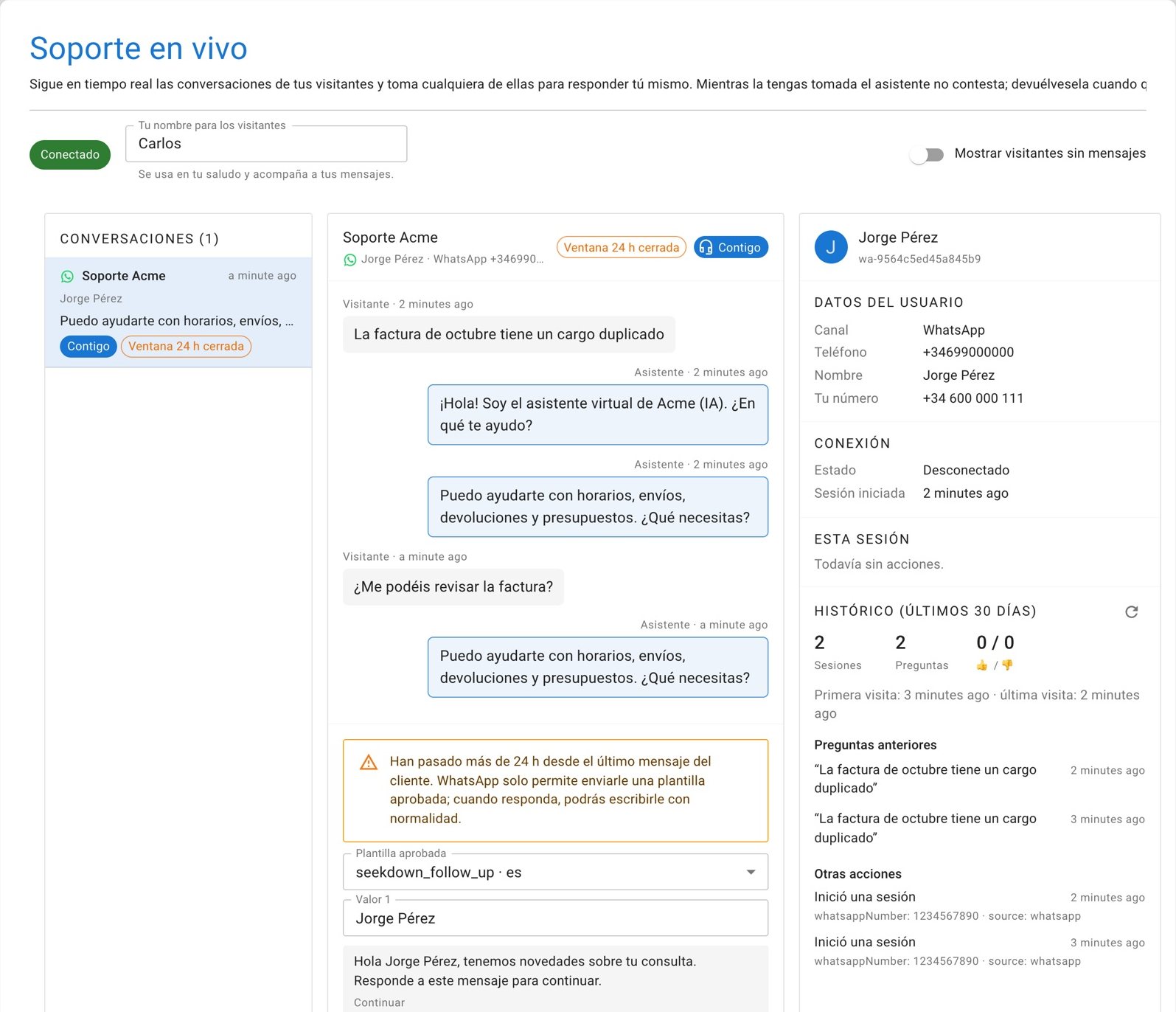
WhatsApp conversations show the WhatsApp icon, the customer's name and number, and the time left in the 24h window. The agent clicks Take over, replies, and clicks Hand back to return the conversation to the assistant. While an agent holds the conversation, the assistant stays silent.
The 24-hour window. WhatsApp lets a business reply freely only within 24 hours of the customer's last message. After that, Live support shows 24h window closed and the reply box changes to an approved template. When the customer answers the template, the window opens again.
Agents can also send one of the assistant's forms from the console. They only see the forms available on the conversation's channel.
Everything the console does is described in Live support.