Monitor a Running Job
Once a job is running, you'll want to know how it's going. Every run moves through the same few stages, in order:
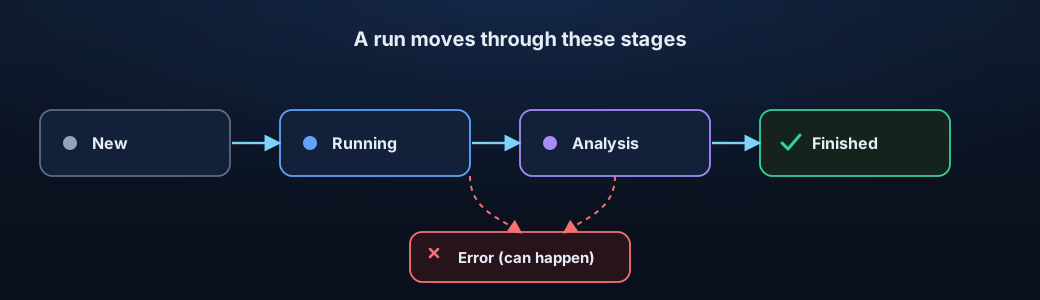
- New — queued and about to start.
- Running — the job is out there, visiting pages and capturing content.
- Analysis — what it captured is being processed and indexed.
- Finished — done; contents and discovered links are ready to review.
- Error — it stopped early; open the details to see why.
Before You Start
- Open a job from Data capture.
Steps
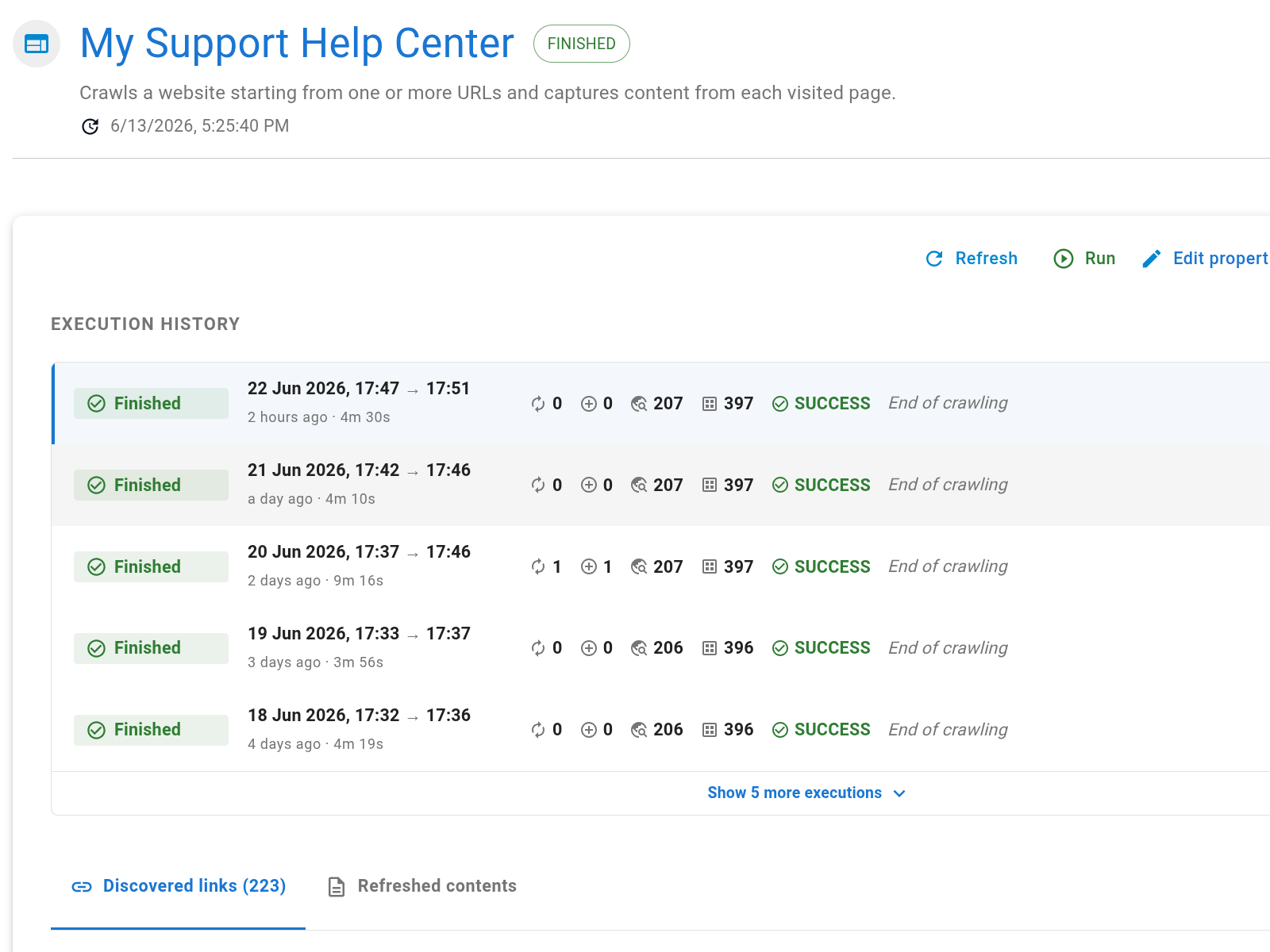
- Check the status badge next to the job title — it shows the current stage (New, Running, Analysis, Finished, or Error).
- Read the progress timeline below the title. It shows each stage the run has passed through, how long each one took, and where the run is right now.
- Glance at the task counts if they're shown — these give a rough picture of how many pages have been processed versus how many are still pending. Bigger sites and higher crawl scopes naturally take longer, so a slow-moving counter on a large run is expected.
- Open the Refreshed contents tab to see the content items the job has captured or updated so far. Items appear here as they're processed, so the list grows while the job is still running.
- Open the Discovered links tab to see every URL the job has encountered — both the ones it processed and the ones it skipped.
Verify the Result
The status should eventually reach Finished — or show an Error you can open and read.
Troubleshooting
- If a job looks stuck, refresh the page.
- If it errors, open the details, and for website jobs try AI analysis.