Tutorial: Connect Excel with OData
Want your captured content in a spreadsheet that stays current? Connect Excel to a dataset's OData feed with Power Query, and it refreshes on demand — no manual exports.
Available on the Enterprise plan
OData feeds are an Enterprise feature. On other plans, export the dataset to Excel, CSV, or JSON instead. See the pricing page.
Before You Start
- Microsoft Excel (with Power Query — built into modern Excel).
- A dataset with some content, and its dataset key.
Steps
- Open the dataset's Excel tutorial in the dashboard and copy the OData URL — the key is baked into the URL, so treat the whole thing as a secret.
- In Excel, open the Data ribbon and launch Power Query.
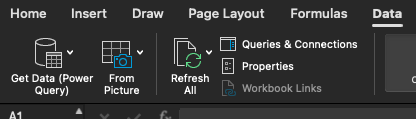
- Choose Get Data → From OData feed and paste the OData URL.
- If Excel asks how to authenticate, choose Anonymous — the secret is already in the URL.
- Select and load the
ContentDetailstable.
Excel pulls up to 100 rows per request; Power Query pages through the rest automatically.
Verify the Result
The ContentDetails table appears in Excel with your dataset's content. Use Refresh to pull the latest.
Troubleshooting
- If there's no URL to copy, generate a dataset key first.
- If a working URL suddenly stops, the key was rotated — copy the new URL.