Embed an Assistant in WordPress
On WordPress you don't need to touch code at all — the official Seekdown plugin does it for you, either as a floating button across the whole site or wherever you drop a shortcode.
Steps
- Download the plugin from the assistant's WordPress tutorial (
seekdown-wordpress-latest.zip). - In WordPress admin, open Plugins → Add New → Upload Plugin, upload the zip, and activate it.
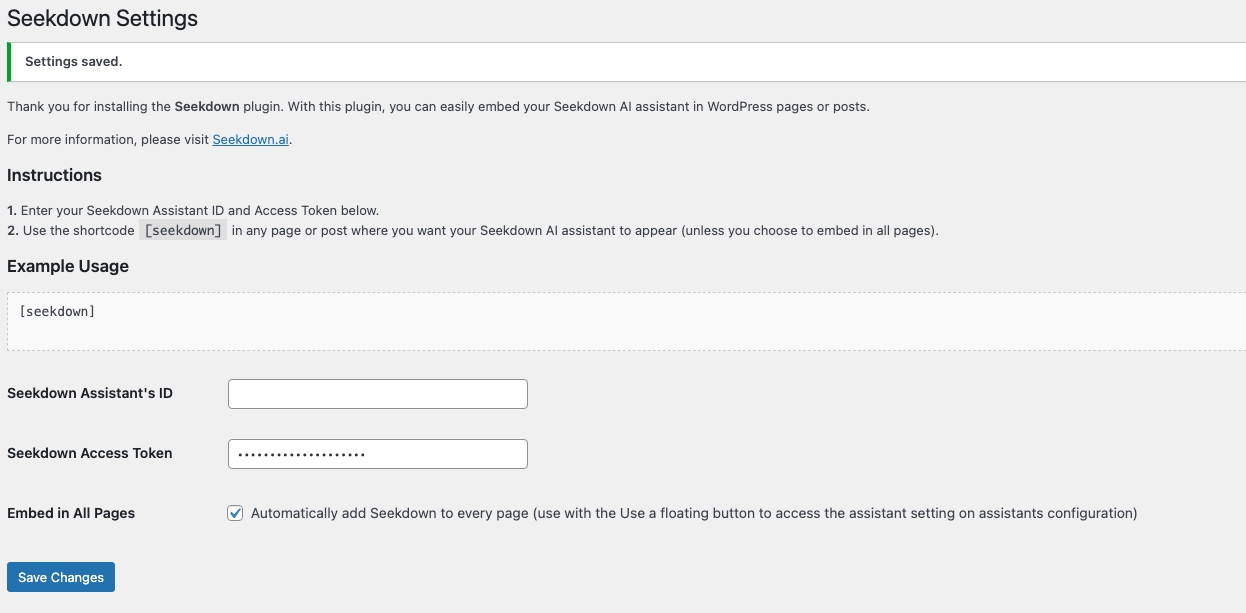
- Open Settings → Seekdown.
- Enter the Seekdown Assistant's ID.
- Enter the Seekdown Access Token if the security mode needs one.
- Choose how to show it:
- Tick Embed in All Pages for a floating button across the whole site.
- Or leave it off and drop the
[seekdown]shortcode on a specific page or post.
- Save changes.
Verify the Result
Open the site outside the admin area and confirm the assistant loads.
Troubleshooting
- If it doesn't appear, confirm the WordPress domain is in allowed origins.
- If you used the shortcode, make sure
[seekdown]is on the page you're looking at.