Test the Assistant Playground
Before anyone else sees it, you get a private dress rehearsal. The playground lets you try the assistant for real — and this traffic doesn't count in your analytics, so test freely.
Steps
- Open the assistant from AI Assistants.
- The playground appears immediately — it's the main view when you open an assistant.
- Ask a realistic question, then a few common ones.
- Read the answers and the sources they cite.
- Adjust behaviour, search, or appearance settings and try again.
Pre-launch Checklist
Run through these before you go live:
| Check | What good looks like |
|---|---|
| Accuracy | Known questions get correct answers, drawn from your content. |
| Sources | Reference cards point to the right pages, not random ones. |
| Refusals | Off-topic or unanswerable questions get an honest "I don't know" — not a hallucinated answer. |
| Tone | The assistant sounds the way your brand should — not too formal, not too casual, matching the instructions you set. |
| Edge cases | A vague question gets a follow-up or a reasonable best guess. A completely off-topic question gets a polite redirect. |
| Hints | Clicking each hint produces a good answer. |
| Appearance | Colors, avatar, welcome message, and layout match your brand. |
Open in Embedded Preview
The playground shows the assistant inside the dashboard, but that's not how visitors will see it. Open embedded preview launches the assistant in a new browser tab, rendered on a sample website page — so you can see exactly how the widget will look and feel once it's deployed on a real site.
Choose Open embedded preview from the assistant's toolbar (the button with the open-in-new-window icon). A new tab opens showing a demo page with sample content, and your assistant runs on top of it using its current configuration — layout, theme, floating button, colors, and all. On mobile-sized screens, the assistant fills the viewport just as it would in a real mobile embed.
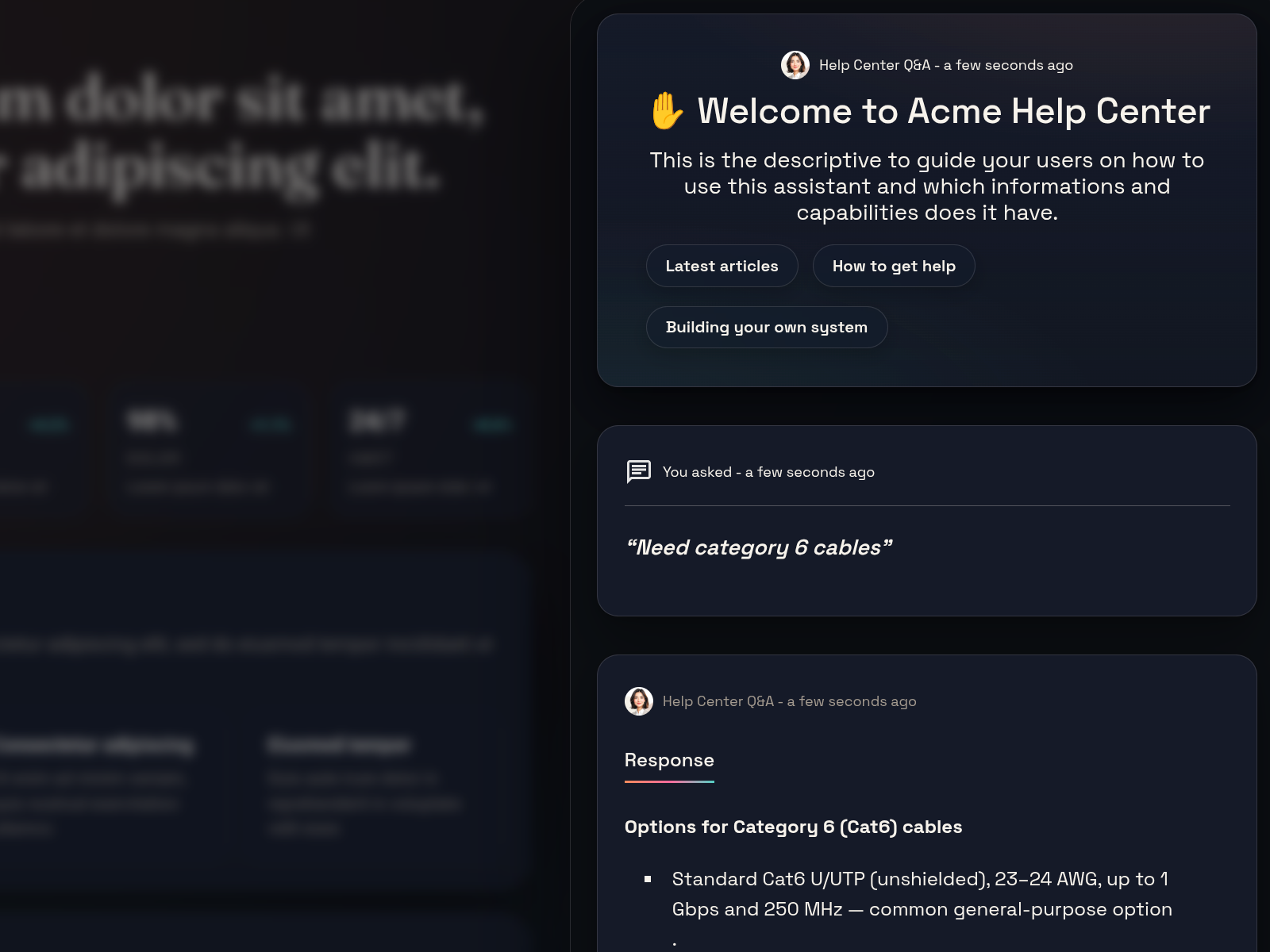
Use the embedded preview to verify:
- The floating button appears in the right position and opens the chat.
- Theme and colors look correct against a real page background, not just the neutral dashboard.
- The layout (default vs. overlay) works as expected at different window sizes.
- Hints, the welcome message, and reaction buttons render properly.
- Highlighted contents (source cards) display with readable titles and links.
Every appearance change you save is reflected the next time you open the preview, so iterate between the Appearance settings and the embedded preview until the widget matches your brand.
Troubleshooting
- If answers are weak, the fix is usually better dataset content or clearer behaviour instructions — not search settings.
- If the preview is blank, check the security mode and allowed origins.
- If a capture job is still running, wait for it to finish ingesting before testing.