Search Dataset Contents
Not sure what's actually inside a dataset? The contents view lets you search and filter it down to the exact items you want to review or edit — the fastest way to confirm a fact is in there, or spot that it's missing.
Before You Start
- Open a dataset that already has some content.
Steps
- Open the dataset's details page from Memory datasets.
- Scroll to the contents area — it sits below the dataset configuration and shows the most recent items by default.
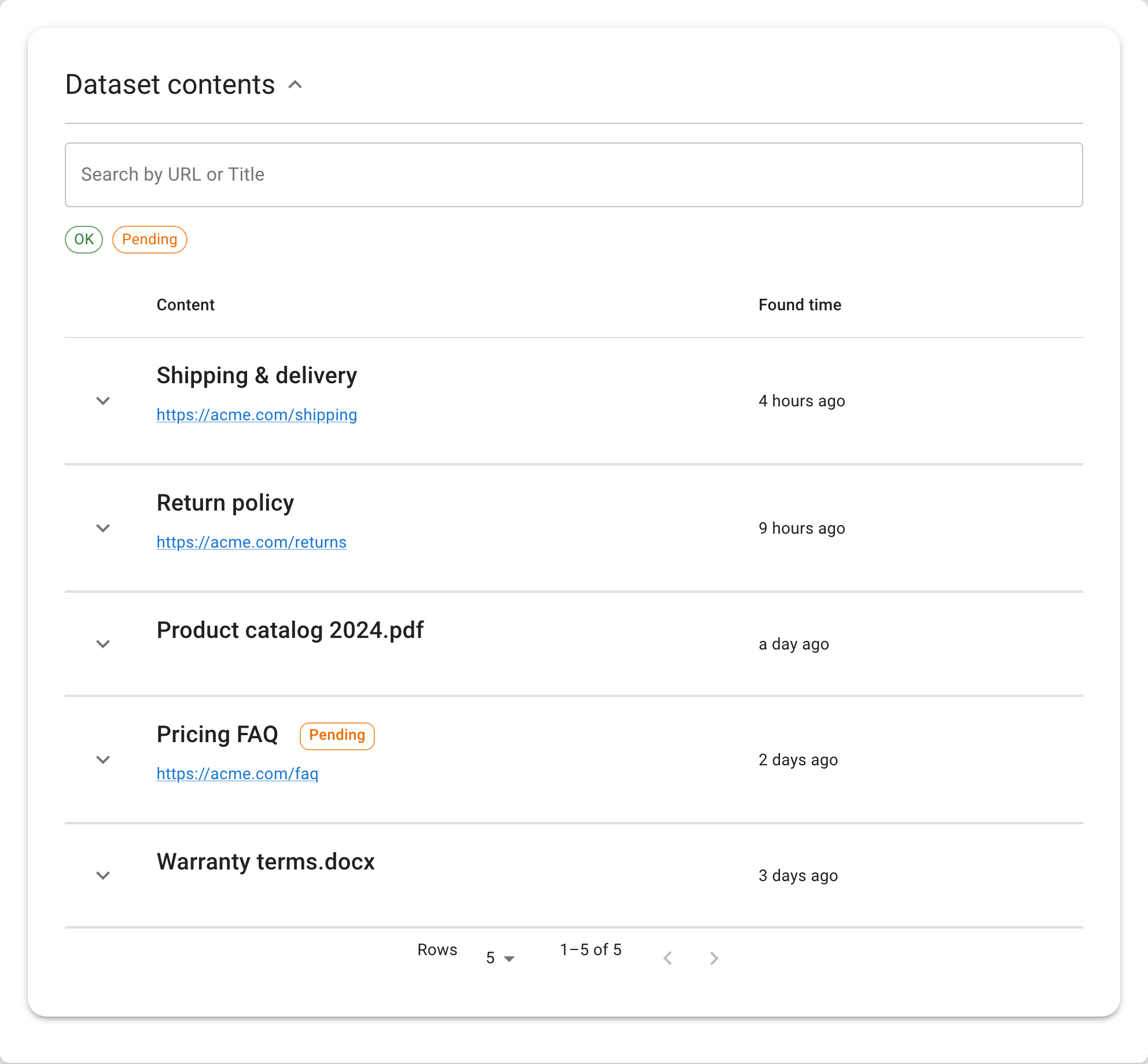
- Type a search term in the search box. The query runs a full-text search across titles, bodies, summaries, and text fields, so you can search for any word or phrase you expect to find in the content.
- Use the filter chips below the search box to narrow results further — by tags, source (which data capture job or owner added the item), content status, or type.
- Skim the matching items. Each row shows the item's title, source URL, tags, and when it was captured.
- Click on any item to open its detail view, where you can read the full content, check attached files, and edit fields if needed.
| Filter | Notes |
|---|---|
| Full-text query | Searches across title, body, summary, and text. |
| Tags | Match any (OR) or all (AND) of the selected tags. |
| Source | Filter by the data capture job/owner that added the item (including "unassigned"). |
| Status / Type | Filter by content status or type. |
| Sort | By discovery time (default), newest first. |
Results are paged (up to 500 rows per page).
Verify the Result
Relevant items should appear in the results.
Troubleshooting
- If nothing shows, clear the search and confirm the dataset actually has content.
- If you know something's in there but search misses it, re-index and try again.