Inspect Conversations
The conversations table is where analytics become actionable. Instead of aggregated numbers, you see the actual questions visitors asked and the actual answers the assistant gave — word for word.
Reading the Table
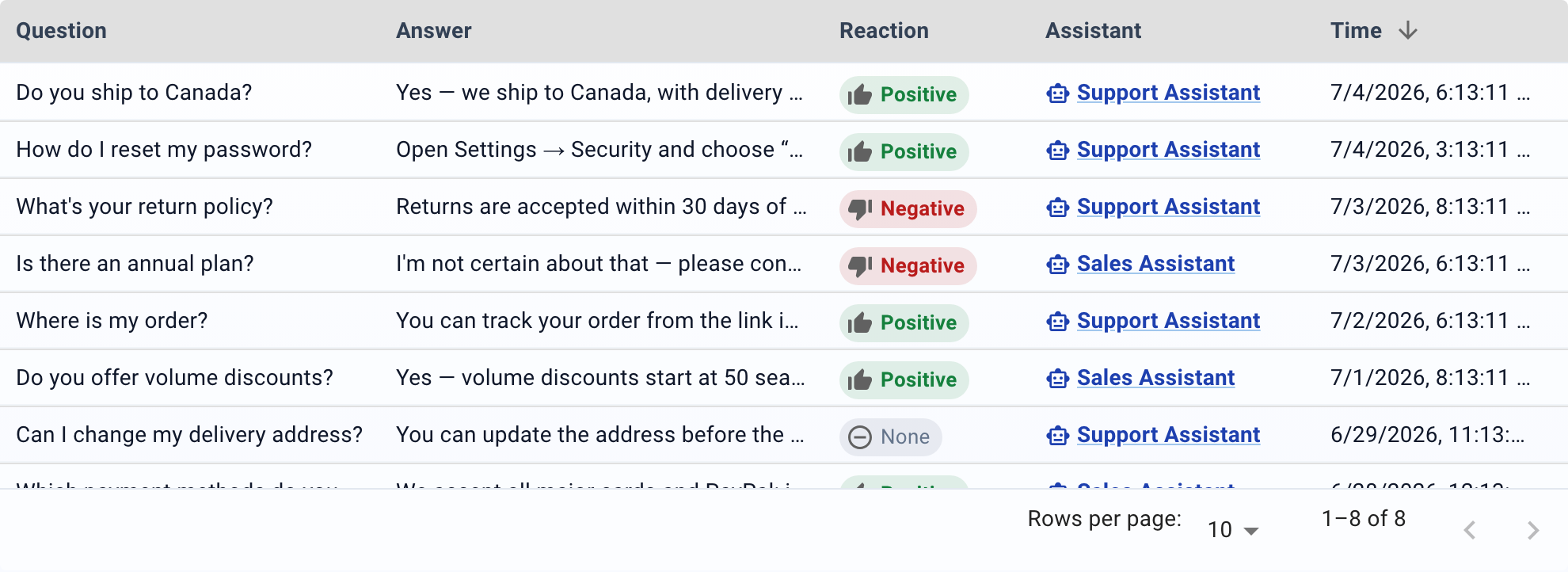
Each row is one question-and-answer pair. The columns are:
| Column | What it shows |
|---|---|
| Question | The exact text the visitor typed. |
| Answer | The assistant's response (truncated — expand for the full text). |
| Reaction | Positive (thumbs up), Negative (thumbs down), or None. |
| Assistant / Session Id | Which assistant (global view) or which session (per-assistant view). |
| Time | When the interaction happened. |
Opening a Full Session
Each row has two action buttons on the right:
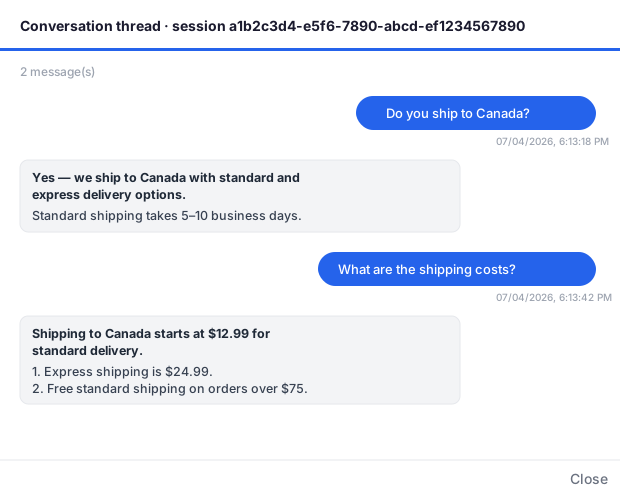
- View full session thread — opens a dialog showing the complete
conversation for that session in a chat-bubble format: visitor questions on the right, assistant answers on the left, in chronological order. This is the fastest way to read a full conversation end to end.
- View session timeline — opens a technical debug view showing the raw
events in the session (see Inspect a Session Timeline).
What to Look For
- Repeated questions with negative reactions — the assistant is failing on a
common topic. Find the missing or incorrect content in the dataset.
- Questions the assistant can't answer — visitors ask about something that
isn't in the dataset. Add the content and the next visitor gets a good answer.
- Vague questions that get vague answers — consider adding hints that guide
visitors toward more specific questions.
- Questions in a language you didn't expect — if you see traffic in French
but haven't translated the interface, add French translations.