Add Documents to Your Memory Dataset
When your knowledge already lives in files — a handbook, a price list, a folder of PDFs — uploading is the quickest way to teach an assistant. Drop the files in, and Seekdown reads them for you.
Before You Start
- Create or open the dataset you want to fill.
- Gather the files you want to add.
Steps
- Open the dataset.
- Choose Import → Upload files.
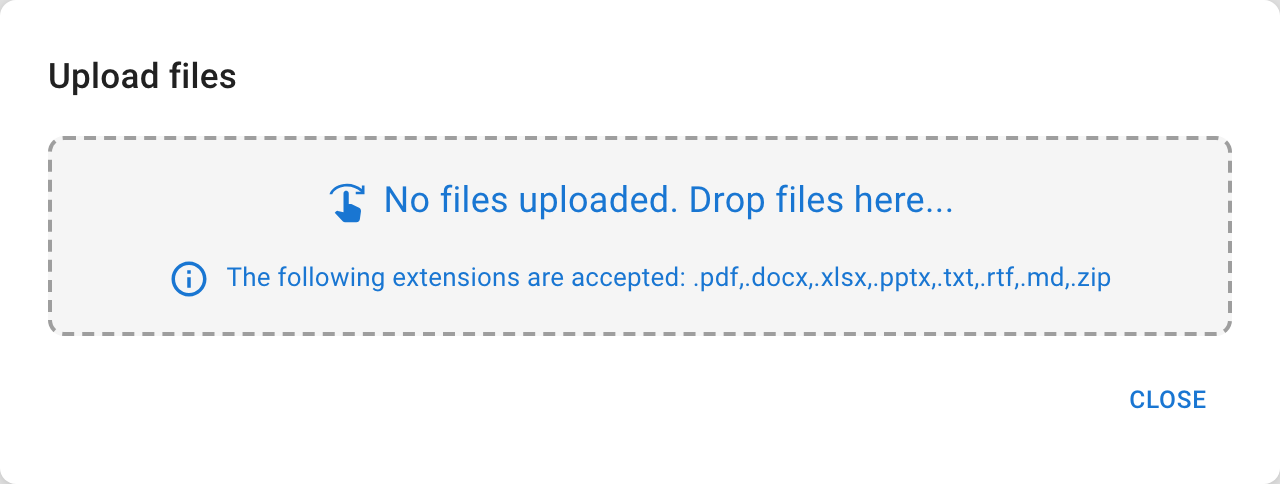
- Pick your files, or drag them into the upload area.
- Remove any file you added by mistake.
- Start the upload.
- Wait for processing to finish — the contents list refreshes and your new items appear once each file has been read and indexed.
Supported formats: PDF, DOCX, XLSX, PPTX, TXT, RTF, ZIP, and MD.
Uploading and processing are two different steps
The upload itself finishes fast, but a file only becomes answerable once it's been processed — its text pulled out and indexed. Bigger files take a little longer, so if a new answer isn't there yet, wait a moment and refresh.
Verify the Result
The contents list should refresh. Search it, or open an item, to confirm your files came through.
Troubleshooting
- If a file is rejected, check its type and size against the upload dialog.
- If new content doesn't show up right away, it's still processing — wait and refresh.