Schedule a Data Capture Job
Your website keeps changing, and you don't want to babysit a data capture job. Put it on a schedule and it refreshes your knowledge on its own — so answers never drift out of date while you're not looking.
Before You Start
- Open a job that supports scheduling (website data capture jobs do).
- Decide how often the source really changes — hourly, daily, weekly, or somewhere in between.
Steps
- Open the job's details page from Data capture.
- Choose Edit properties to open the configuration form.
- Scroll to the Schedule section.
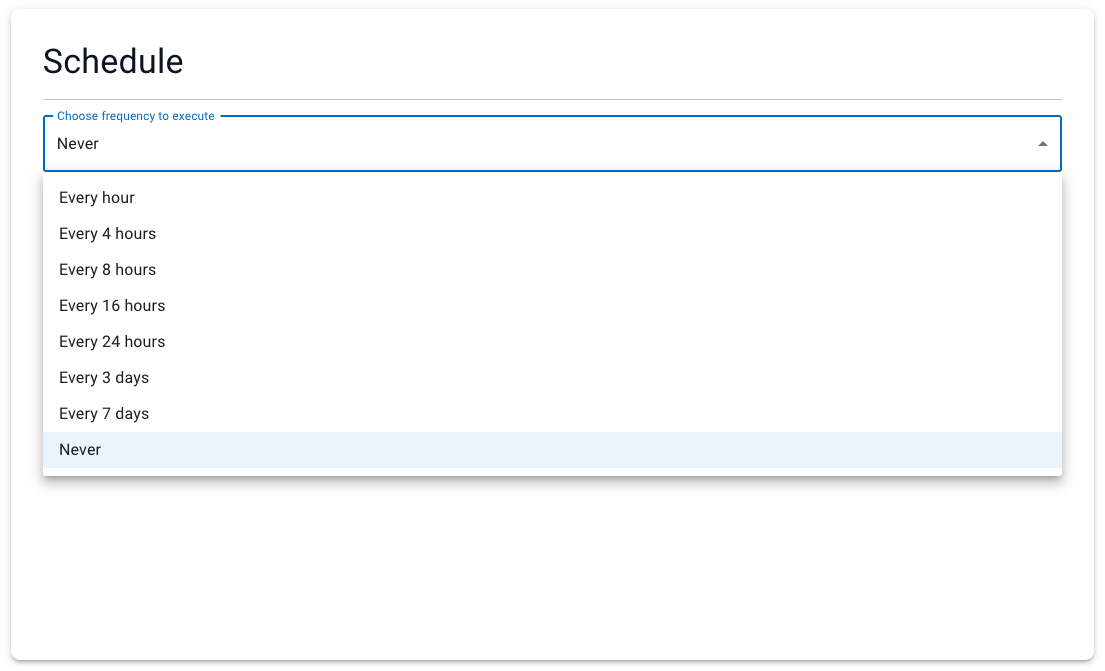
- Open the Choose frequency to execute dropdown and pick one of the available intervals:
| Frequency | Good for |
|---|---|
| Every hour | Content that changes very frequently (news feeds, live inventories). |
| Every 4 hours | Fast-moving sites where you need near-real-time freshness. |
| Every 8 hours | A balanced cadence — three refreshes per day. |
| Every 16 hours | Sites that update once or twice a day. |
| Every 24 hours | A daily refresh — the most common choice for docs and blogs. |
| Every 3 days | Content that changes a few times a week. |
| Every 7 days | A weekly refresh for stable content (policies, manuals). |
| Never | No automatic runs — the job only runs when you trigger it by hand with the Run button. |
- Save the updated configuration.
Verify the Result
The job's configuration should now show the frequency you picked. The next automatic run will happen after the chosen interval has elapsed since the last run.
Troubleshooting
- If the schedule section isn't shown, this job type may not support scheduling.
- If scheduled runs never happen, check your subscription status and the job's recent errors.