Security Settings
The Security tab decides who may load the assistant and how it proves it's allowed. It has two parts: an authentication mode and an allowed-origins list.
Authentication Mode
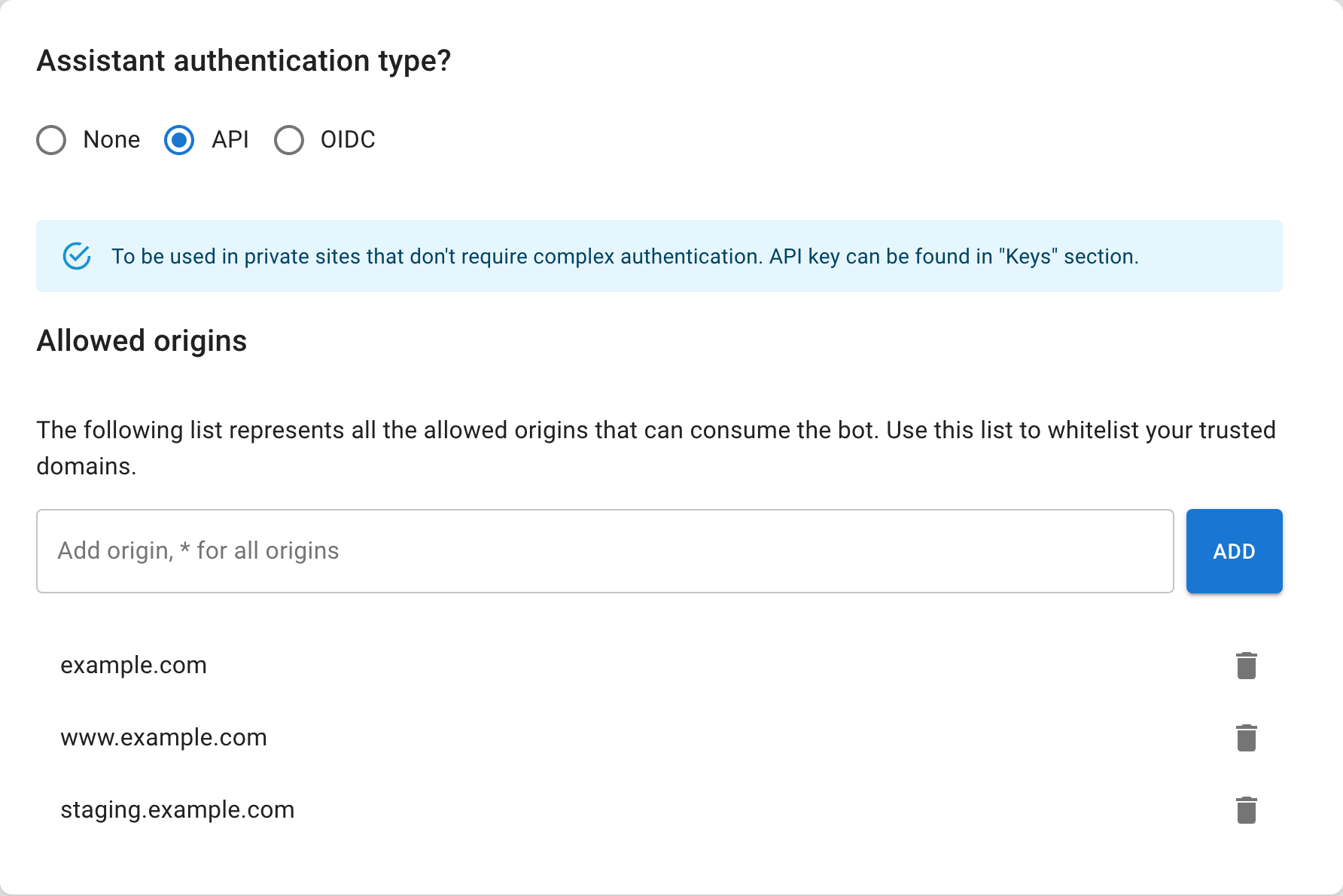
Set on the Security tab as "Assistant authentication type?". Three modes:
| Mode | Requires | When to use |
|---|---|---|
| None | Nothing | Public help centers and open websites — anyone on an allowed origin can load the assistant. |
| API | An API key | Private sites without complex authentication — the embed passes the key as accessToken. |
| OIDC | Issuer + audience | Apps with an identity provider — the embed passes your provider's JWT as accessToken, and Seekdown validates it. |
- None — the assistant starts with just an
assistantId. Good for public-facing assistants where you want zero friction. - API — the embed must pass an assistant key as
accessToken. Generate it on the Keys tab. Good for sites where you control the source code but don't have an auth provider. - OIDC — the embed passes your identity provider's JWT as
accessToken; Seekdown validates it against the configured issuer and audience. Good for logged-in experiences where you already have an auth stack (Firebase, Auth0, Azure AD, etc.).
OIDC Fields
These fields appear only when the authentication mode is OIDC:
| Field | What it is | Example (Firebase) |
|---|---|---|
| Issuer | Your provider's token issuer URL. | https://securetoken.google.com/{your-project-id} |
| Audience | The expected audience claim in the JWT. | {your-project-id} |
Allowed Origins
The Allowed origins list whitelists the domains that may embed or call the assistant — a CORS-style gate.
- Default:
*(any origin). Convenient for testing, but narrow it before launch. - Format: exact domains such as
example.comorapp.example.com, or*for all. - Effect: an assistant only initializes on an origin in this list. If the embedding page's origin is missing, the widget will not load.
- Add both staging and production domains if you use both.
- For Shopify, include your
.myshopify.comdomain and any custom domain.
Narrow origins before launch
Replace * with your real domains before going live. A wildcard origin means anyone can embed your assistant on any site.
Troubleshooting
- If the assistant won't load on a site, open the browser console and confirm the page's origin is on the allowed list.
- A blocked origin usually looks like the assistant simply not appearing, with a console message saying the origin isn't allowed. Add the exact domain and reload.
- If a key may have leaked, renew it on the Keys tab and update every integration.