Put the assistant from your website on your WhatsApp number
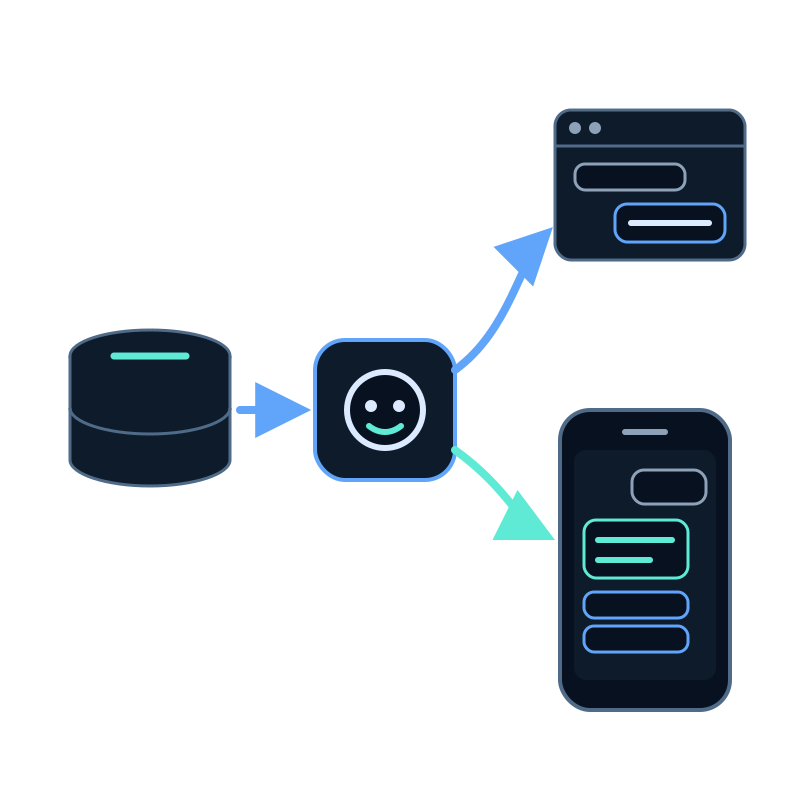
Many customers never open your website chat. They save your number and write to you on WhatsApp instead, often with the same questions the website assistant already answers.
This guide connects a WhatsApp Business number to an assistant you already have in Seekdown. At the end, a customer who writes to the number gets an answer from the same content, and can ask for a person from your team.
What you need before you start
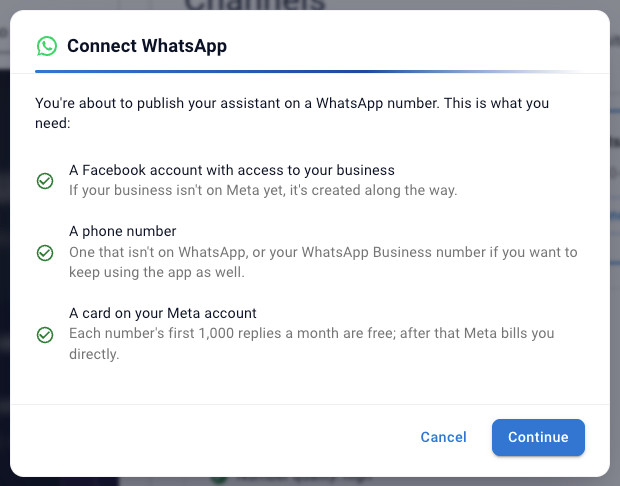
The WhatsApp side lives in your own Meta account. Check these three items first, because Meta asks for them during the connection.
| You need | Why it matters |
|---|---|
| A Facebook account that manages your business | Meta asks you to sign in and choose the business. If it isn't on Meta yet, it's created during sign-up |
| A phone number | Either a number that isn't on WhatsApp, or your current WhatsApp Business number if you want to keep using the app on your phone |
| A payment method on your Meta account | Meta bills WhatsApp messaging fees to your business directly |
You also need an assistant that already answers well on your website. WhatsApp uses its dataset, instructions and forms, so fix weak answers there first. The guide on training an assistant on your website content covers that part.
The connection at a glance
| Step | Where in Seekdown | Result |
|---|---|---|
| 1. Start the connection | AI assistants → WhatsApp → Connect number, or the assistant's Channels tab | The Connect WhatsApp dialog lists the requirements |
| 2. Choose who answers | Which assistant answers on this number? | One assistant, or a menu of 2 to 10 |
| 3. Connect with Meta | Continue with Meta, or the manual connection | Number connected |
| 4. Adjust the first message | The number's Settings tab | Welcome, buttons and hand-off, checked in the phone preview |
| 5. Test it | Status and testing | A reply on your own phone |
| 6. Share it | Status and testing | A wa.me link and a button for your website |
If you've just created the assistant with Quick create, the last screen has a Publish on WhatsApp button that opens the same dialog.
Decide who answers on the number
Seekdown asks this before connecting, because the number is the channel, not the assistant.
- A single assistant suits most businesses. Every message goes to it.
- A menu so the customer chooses among several assistants suits a number shared by different teams. The customer picks from a list when they start, and the chosen assistant keeps answering in later messages.
A menu only helps when each assistant has a clear scope. Name them after what the customer wants, such as Orders or Invoices, not after your internal departments.
Connect the number
Continue with Meta opens Meta's own window. There you choose the business, its WhatsApp Business account and the number. Keep pop-ups allowed for the dashboard, or the window won't open.
If you already use the number in the WhatsApp Business app, tick I already use this number in the WhatsApp Business app and want to keep using it first. You'll keep the app on your phone, and the assistant answers through Seekdown.
If your account only shows the manual option, or you prefer it, choose I'd rather connect it by hand with my Meta details. You copy three values from your app in Meta for Developers:
| Field | Common mistake |
|---|---|
| Phone number ID | Pasting the phone number. It's a separate numeric ID |
| WhatsApp Business account ID | Leaving it empty. Seekdown needs it to receive messages and manage templates |
| Access token | Using the temporary token, which expires in 24 hours. Create a permanent system user token |
Seekdown checks the token and the IDs with Meta before saving. If they don't match, the dialog says the number could not be connected and nothing is stored.
Write the first message customers will see
Open the number's Settings tab. The Preview on the right shows the chat as you type.
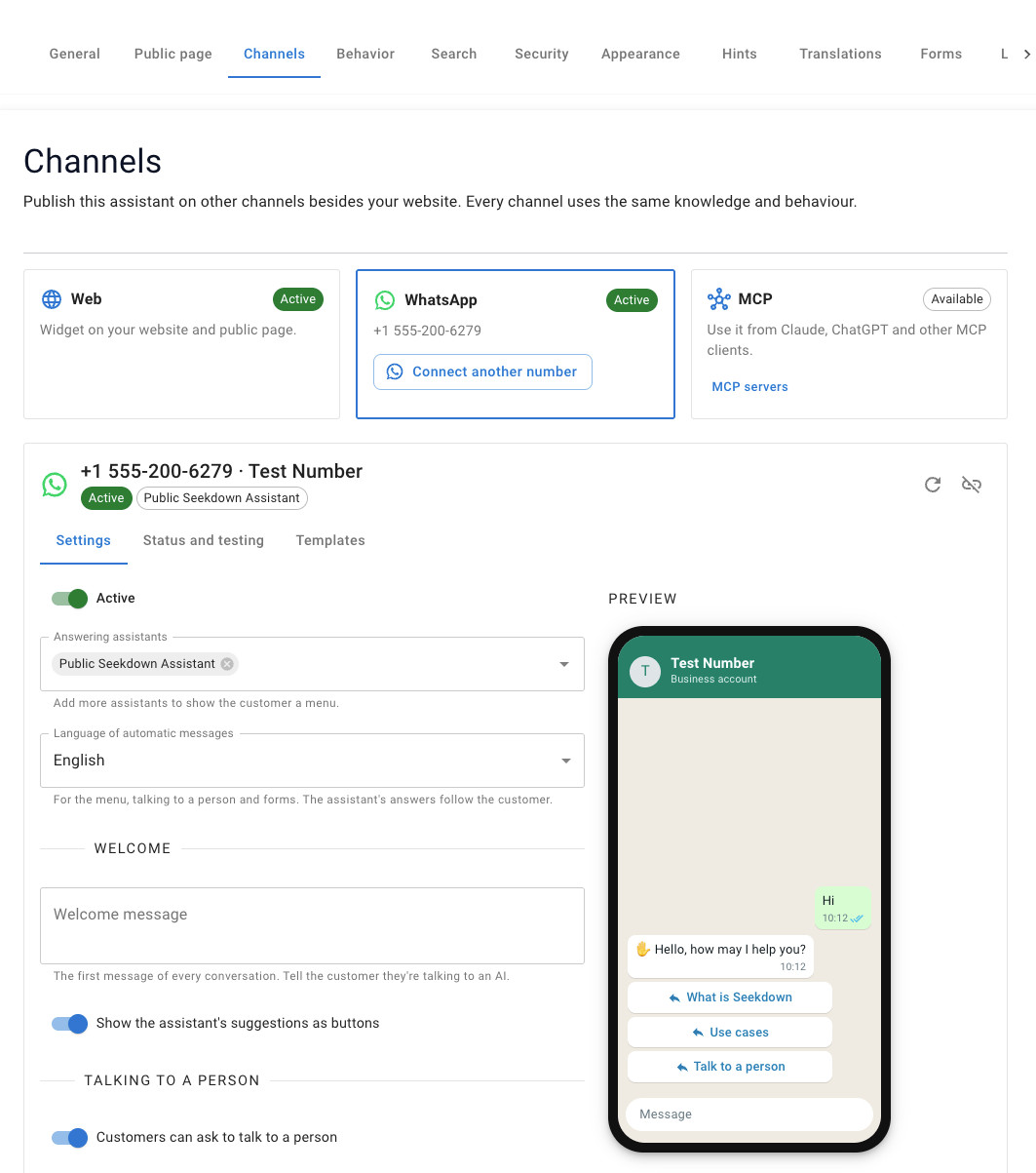
Three settings shape the first impression:
- Welcome message: say it's an AI and what it can help with. For example: Hi! I'm Acme's virtual assistant (AI). I can help with orders, returns and opening hours.
- Show the assistant's suggestions as buttons: WhatsApp shows at most three buttons. When hand-off is on, one of them is Talk to a person, so only your first two suggestions appear.
- Language of automatic messages: the language of the menu, hand-off messages and forms. The assistant's answers still follow the customer's language.
Also fill in If they send audio, images or files. The assistant only reads text for now, so this message should tell the customer what to do instead.
Test it from your phone
Open the Status and testing tab. Wait until Number registered on WhatsApp is checked, then scan the QR code or click Open chat.
| Send this | You should see |
|---|---|
| Hello | The welcome and the suggestion buttons |
| A question your website answers | A short answer, with up to three links to the source pages |
| I want to talk to a person | The hand-off message, and the conversation waiting in Live support |
| A voice note | Your text for audio, images or files |
If the answer differs from the one on your website, compare the sources rather than the wording. WhatsApp answers are shorter on purpose, but they come from the same dataset.
If it doesn't answer
- Nothing arrives: check that the number is Active, then click Refresh status from Meta. This also renews Seekdown's subscription to your WhatsApp Business account.
- It worked yesterday and stopped: you probably used Meta's temporary token. Reconnect with a permanent one.
- The hand-off never reaches anyone: Live support must be on and someone must be attending the assistant during your team's hours.
Share the number
When the test passes, use the wa.me link in emails and social profiles, or click Copy button for your website to get a Chat with us on WhatsApp button.
The next decision is how your team handles conversations after 24 hours. What the WhatsApp 24-hour window means for your team explains hand-offs, Live support and templates. Every setting is listed in the WhatsApp documentation.