Answer your clients' WhatsApp messages without losing control of the advice
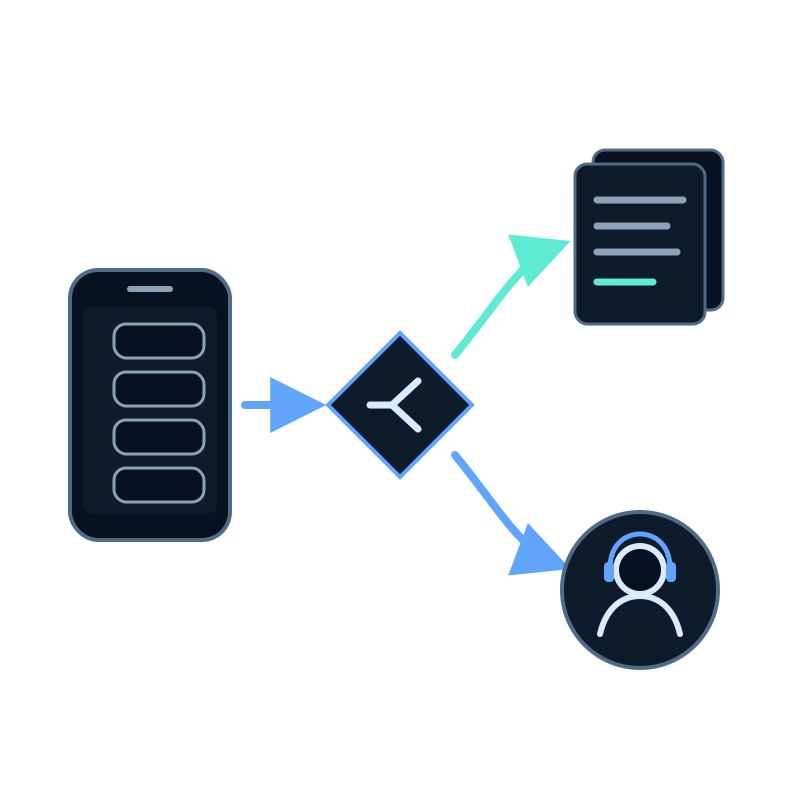
In most advisory firms, WhatsApp grew on its own. Clients write to an advisor's mobile, the week before each quarterly deadline the messages pile up, and a question about a tax notice sits between photos of receipts.
An assistant on the firm's WhatsApp number can take the repetitive part of that traffic. The work is deciding what it may answer, what it must pass to a person, and what it should refuse to handle. This guide walks through those decisions with the settings Seekdown offers.
Sort client messages before you configure anything
Take a sample of recent WhatsApp messages and sort them into the rows below. The right column is the decision that matters.
| What the client writes | Example | Who should answer |
|---|---|---|
| A date from your published calendar | When do you need my invoices for this quarter? | The assistant, from your calendar page |
| What to send for a service | What do I need for my annual return? | The assistant, from your document checklist |
| A general rule your firm has explained | Can I deduct my phone bill? | The assistant, from your guide, saying when it depends on the client's case |
| A question about their own figures | How much will I pay this quarter? | An advisor |
| A letter from the tax office | I've received a notice, what do I do? | The assistant gives your first steps and collects the details, then an advisor |
| A new client asking about fees | Do you handle self-employed clients? | The assistant, then an intake form |
The assistant answers from the content you give it. If your firm hasn't written down its calendar or checklists, start there: one page per service is enough. The guide on preparing your website for an AI assistant explains what makes a page easy to answer from.
Personal advice stays with a person
Write it into the assistant's instructions: it explains general rules from your content and offers an advisor for anything that depends on the client's figures. A general answer with a link to your guide is useful; a guess about someone's tax return is not.
Choose one number or a menu
A small firm usually needs one assistant on one number. A firm with separate teams can put a menu on the same number, so the client picks before asking.
| Firm setup | Configuration |
|---|---|
| One team handles everything | A single assistant |
| Tax and accounting, payroll, legal | A menu so the customer chooses among several assistants, one per area, each with its own dataset |
Each assistant on a menu answers from its own dataset and instructions. A payroll question asked to the tax assistant gets a weaker answer, so name each option after what the client needs, such as Taxes and accounts or Payroll and employees.
Hand cases to an advisor during office hours
Turn on Customers can ask to talk to a person and fill in the hand-off settings around how your office actually works:
| Setting | Example for an advisory firm |
|---|---|
| Your team's hours | Monday to Friday, 09:00 to 18:00, in your Time zone |
| Words that trigger it | advisor, accountant, person |
| Message when passing to a person | I'm passing you to one of our advisors. They'll reply in this same chat during office hours. |
| Out-of-hours message | Our office is closed now. I can help with general questions; an advisor will see urgent cases first thing tomorrow. |
| Waiting minutes | Short enough that nobody is left waiting while every advisor is in a meeting |
The advisor replies from Live support, and the client reads the answer in the same WhatsApp chat. If nobody picks the conversation up within the waiting minutes, the assistant takes it back and tells the client.
Use forms for requests your team must act on
A tax notice or a new-client enquiry needs structured details, not a paragraph of chat. Create an assistant form and set Available in to include WhatsApp.
On WhatsApp the assistant asks one field at a time and checks the format before continuing:
| Field | Type | What WhatsApp does |
|---|---|---|
| Name | Text | Asks and stores it |
| Asks again if it doesn't look valid | ||
| Type of notice | Options | Shows the options as buttons or a list |
| Response deadline | Date | Expects DD/MM/YYYY and asks again otherwise |
| Document checklist | File | Sends your PDF as a document in the chat |
Submissions are saved with the ones from your website, so the team reviews them in one place.
Tell clients where documents go
The assistant reads text only. Photos of invoices, PDFs and voice notes get the reply you write in If they send audio, images or files. Use it to point to the channel your firm already uses for documents:
I can only read text messages. Please upload your invoices to the client portal: firm.example/upload. If you have a question about them, type it here.
This keeps documents out of a chat that isn't designed to store them, and gives the client an immediate next step.
Follow up when the return is ready
Advisors often reply days later, once a return is ready or a document is missing. By then the WhatsApp 24-hour window has usually closed, and only an approved template can reopen the conversation. Prepare a Utility template such as Hi {{1}}, we have news about your request. Reply to this message to continue. before the next deadline. What the WhatsApp 24-hour window means for your support team explains the rule and the template wizard.
Keep client data in check
- The welcome message should say the client is talking to an AI.
- In Analytics, WhatsApp clients appear under a pseudonym, not their phone number.
- Seekdown deletes a WhatsApp conversation 90 days after its last message.
- Disconnecting the number deletes its conversations and the Meta credentials stored in Seekdown.
Check that your privacy notice mentions the assistant and WhatsApp before you publish the number.
To connect the number step by step, follow how to connect your website AI assistant to WhatsApp.