What the WhatsApp 24-hour window means for your support team
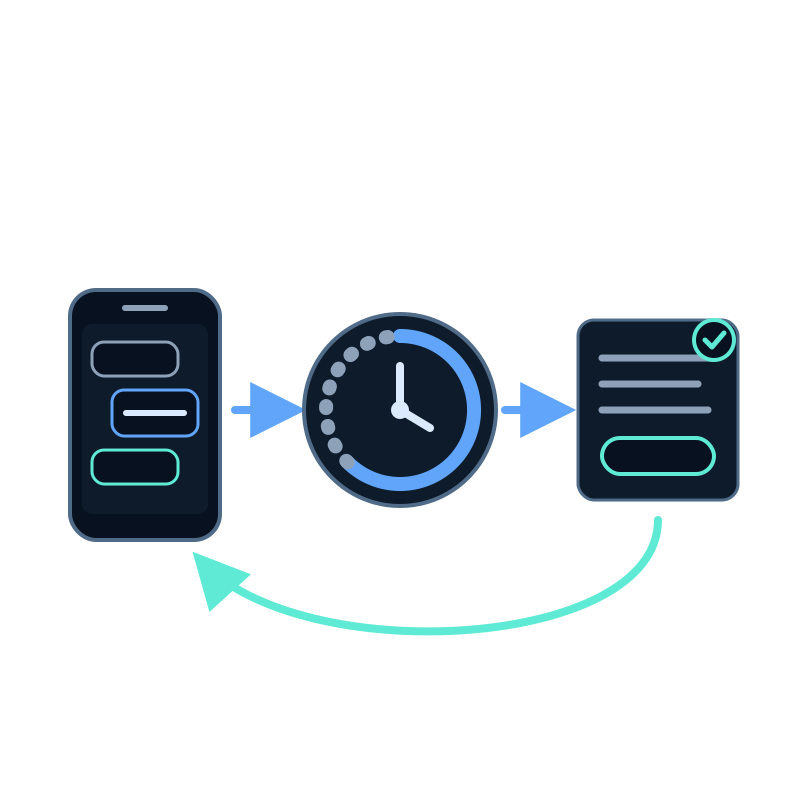
A customer asks for a person at 6 p.m. Someone from your team sees it the next morning, writes a reply and WhatsApp refuses to deliver it.
Nothing is broken. WhatsApp only lets a business reply freely for 24 hours after the customer's last message. This guide explains that rule, how a conversation reaches your team when an assistant answers the number, and what to prepare so a late reply still gets through.
The rule in one paragraph
Each message from the customer opens a 24-hour window. Inside it, your assistant and your team can write anything. Once it closes, the only message you can send is a template that Meta has approved in advance. When the customer replies to the template, a new window opens and the conversation continues normally.
| Time since the customer's last message | What you can send |
|---|---|
| Less than 24 hours | Any reply, from the assistant or a person |
| More than 24 hours | Only an approved template |
| The customer answers the template | Any reply again, for another 24 hours |
The window is set by WhatsApp. Seekdown shows it to your team but can't extend it.
How a conversation reaches a person
In Seekdown the assistant answers first. A customer reaches your team in two ways: tapping the Talk to a person button, or typing one of the words you set in Words that trigger it.
What happens next depends on your settings in the number's Talking to a person section:
| Situation | What the customer gets | What your team sees |
|---|---|---|
| Within Your team's hours | The Message when passing to a person | The conversation waiting in Live support |
| Nobody takes it within the Waiting minutes | A message saying the team couldn't take the chat yet, and the assistant keeps helping | The conversation goes back to the assistant |
| Outside your team's hours | The Out-of-hours message, and the assistant keeps helping | Nothing waiting |
Set the hours and the Time zone to match when someone actually watches Live support. A hand-off promised at 11 p.m. that nobody answers is worse than an honest out-of-hours message.
What your team sees in Live support
Live support lists website and WhatsApp conversations together. WhatsApp ones show the WhatsApp icon, the customer's name and number, and a badge with the time left, such as 24h window · 23 h left.
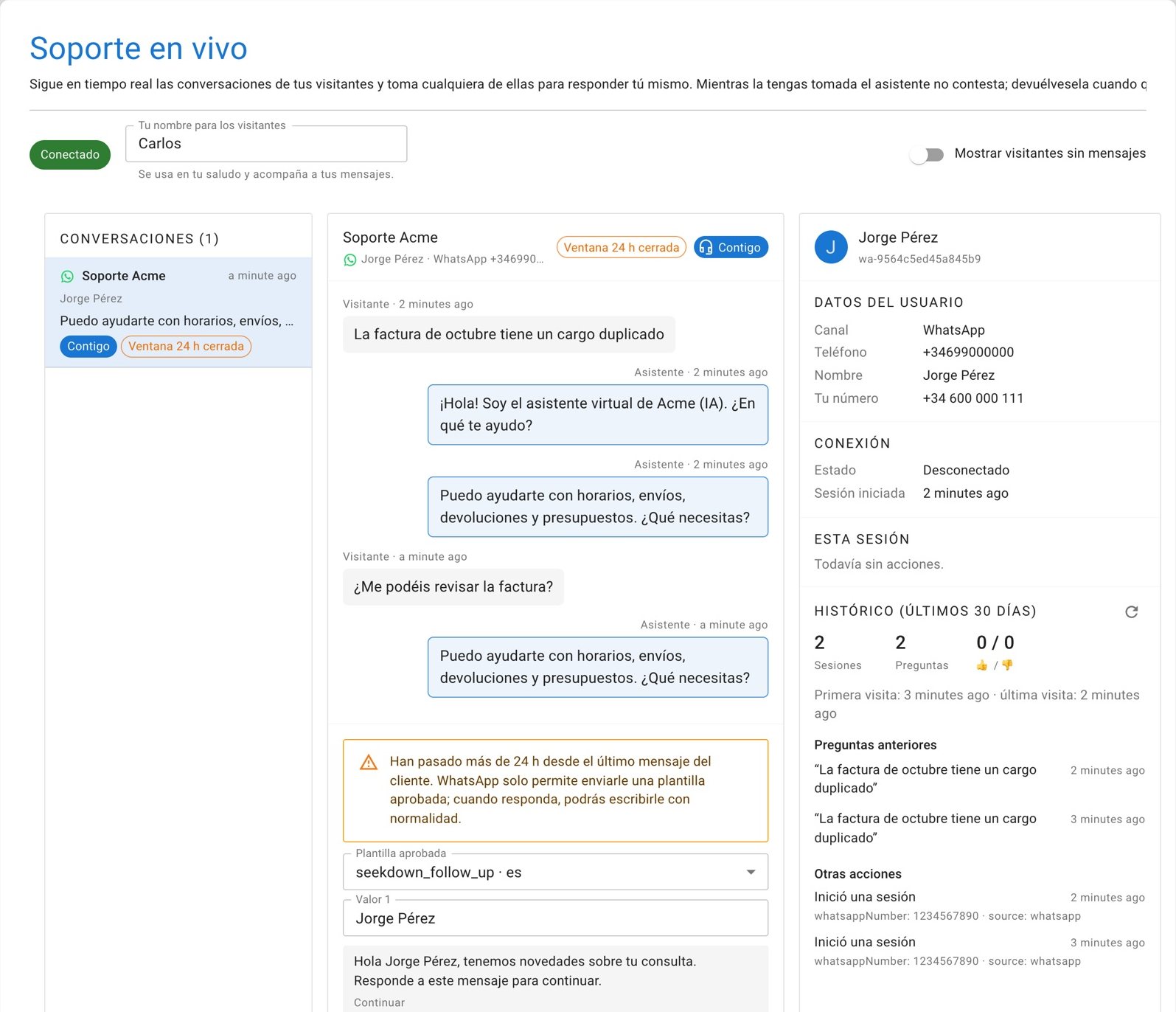
An agent clicks Take over and replies. While they hold the conversation, the assistant stays silent. Hand back returns it to the assistant, with an optional farewell message.
Two things return a conversation to the assistant without anyone clicking: the agent not answering in time, and the agent's console closing. Both leave a note in the conversation, so the next person knows what happened.
When the window has closed, the badge changes to 24h window closed and the reply box becomes a template picker.
Prepare the follow-up template before you need it
Meta reviews templates before they can be sent, usually within minutes and within 24 hours at most. Create one before the first late reply, not during it.
In the number's Templates tab, click Create template. The wizard walks you through three steps.
| Field | What to write | Rule to respect |
|---|---|---|
| Name | request_follow_up | Lowercase letters, digits and underscores. Customers don't see it |
| Language | The language of your customers | Create one template per language you serve |
| Message text | Hi {{1}}, we have news about your request. Reply to this message to continue. | It can't start or end with a blank, and blanks are numbered in order |
| Examples for Meta | Laura for {{1}} | Every blank needs an example |
| Buttons | Continue | Up to three, 25 characters each |
The category is Utility: updates about a request or an order, with no advertising. Use the recommended text fills in the message above for you.
Once it's Approved, click Use … to resume conversations so Live support offers it by default.
Give the customer a reason to tap
A template that only says Hello rarely gets an answer. Say there is news about their request and offer a one-tap button. The reply reopens the window, and the agent can then write the full answer.
A routine for late replies
- Open the conversation in Live support and check the window badge.
- If it's still open, take over and answer.
- If it's closed, choose the approved template, fill in the customer's name and send it.
- When the customer replies, take over again and answer within 24 hours.
- Hand the conversation back to the assistant when you're done.
Meta charges each template you send to your Meta account. Templates are worth it for genuine follow-ups, not as a way to start conversations with customers who never asked.
Can the assistant send the template by itself?
No. Templates are sent by a person from Live support. The assistant only answers messages the customer sends.
Does the window close while an agent is typing?
The window depends only on the customer's last message. Check the badge before writing a long reply.
Can I use templates for promotions?
The wizard creates Utility templates, which Meta reserves for updates about a request or an order. Promotional messages need a different category and an opt-in from the customer, and aren't sent from Seekdown.
To set up the number itself, follow how to connect your website AI assistant to WhatsApp. Every hand-off and template setting is described in the WhatsApp documentation.