Take over a conversation from your website AI assistant
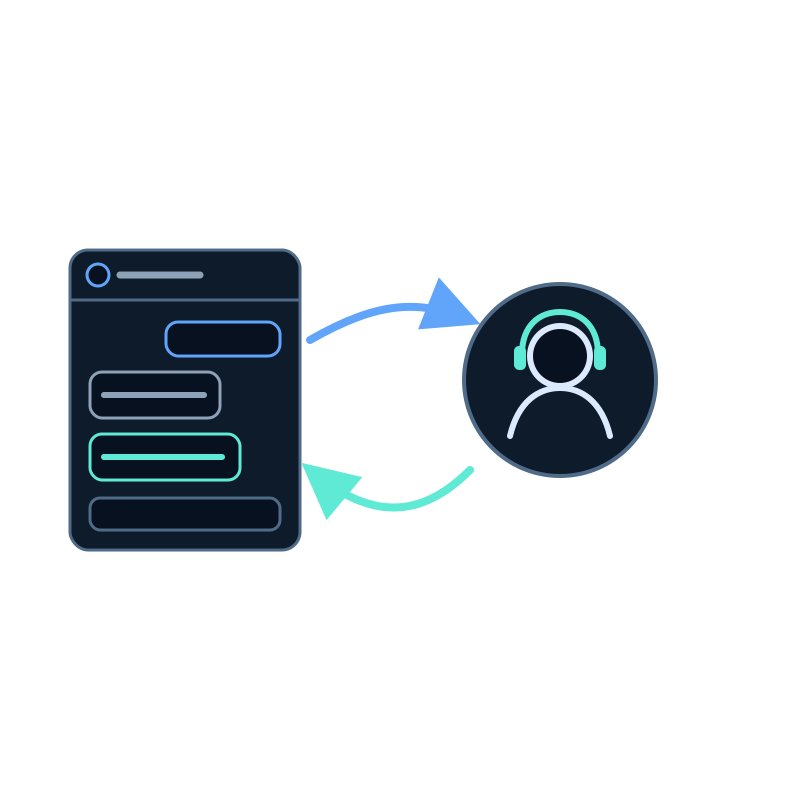
Some conversations shouldn't stay with the assistant: a duplicate charge, an order that never arrived, a customer about to cancel. The visitor is already in the chat, so the quickest help is a person answering in that same window.
This guide sets up Seekdown Live support and walks through one conversation from take-over to hand-back. You'll need an assistant that's already live on your website.
Set up the console once
| Step | Where | What to do |
|---|---|---|
| 1. Open the console | AI assistants → Live support | Check that the status says Connected |
| 2. Turn on notifications | The bell in the console toolbar | Allow notifications when the browser asks. A test notification confirms they work |
| 3. Choose what you attend | Assistants in the toolbar | Keep only the assistants you support switched on |
| 4. Set your identity | The same panel | Write a Support name per assistant, and check the greeting and farewell |
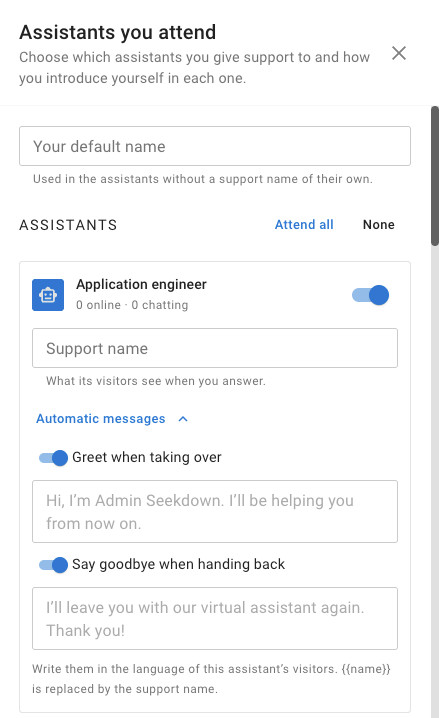
The greeting and farewell are sent automatically when you take over and hand back. Write them in the language of that assistant's visitors. {{name}} becomes your support name, so Hi, I'm {{name}}. I'll be helping you from now on. reaches the visitor as Hi, I'm Laura. I'll be helping you from now on.
These preferences are kept in your browser. If you answer from two computers, set them on both.
Rehearse with the playground
Before taking over a real visitor, open your assistant in the dashboard and ask it something in the playground. The conversation appears in the console labeled Dashboard, so you can try every step below on yourself.
Take over the conversation
Open the conversation from the list. If it's urgent, it's under Waiting for a reply, with the time the visitor has waited.
- Read what the visitor and the assistant have said so far.
- Click Take over, or write your first message in the box: writing to a conversation the assistant holds takes it over.
- If you don't want the automatic greeting, use Take over without greeting instead.
From that moment the assistant doesn't answer this visitor. The visitor's chat header shows Human agent with your support name. When they write, the chat tells them you'll reply shortly. Each of your messages plays a short chime, and if they've collapsed the chat, a bubble over the chat button shows your message.
Reply in the same chat
Write as you would in any chat: Enter sends, Shift+Enter adds a line. Two tools help when a reply needs more than text:
- Visitor in the toolbar opens the details panel: the data your website passes to the assistant, the page they're on, what they've clicked in this session and their questions from the last 30 days.
- The forms button next to the message box sends one of the assistant's forms. The visitor fills it in the chat and the answers appear in the conversation.
Hand the conversation back
When you're done, click Hand back. The farewell goes out, and the assistant answers anything the visitor wrote and wasn't answered. Use Hand back without farewell if the conversation ended naturally.
You don't have to remember to do it. The assistant takes the conversation back if you leave the visitor's messages unanswered for 3 minutes, or if your console closes and doesn't reconnect within 45 seconds. The conversation shows a note so you know what happened.
Check that it worked
| Check | Expected result |
|---|---|
| Take over the Dashboard conversation | Your greeting appears in the playground, and the header shows Human agent |
| Send a message from the playground | It appears in the console and the assistant doesn't answer it |
| Wait 3 minutes without replying | The assistant answers and the console shows that you didn't answer in time |
| Take over again and click Hand back | The farewell appears and the next question gets an answer from the assistant |
What Live support doesn't do
- On the website, the visitor can't call for a person. You decide when to step in. If visitors need to leave a request for later, offer a contact form with an activation trigger.
- It isn't a ticket system. Conversations stay in the console while they're active; the questions remain in Analytics and form submissions in your leads.
To decide which conversations deserve a person, read when a person should take over from your AI assistant. Every setting is in the Live support documentation.