Show your support agents who they're talking to
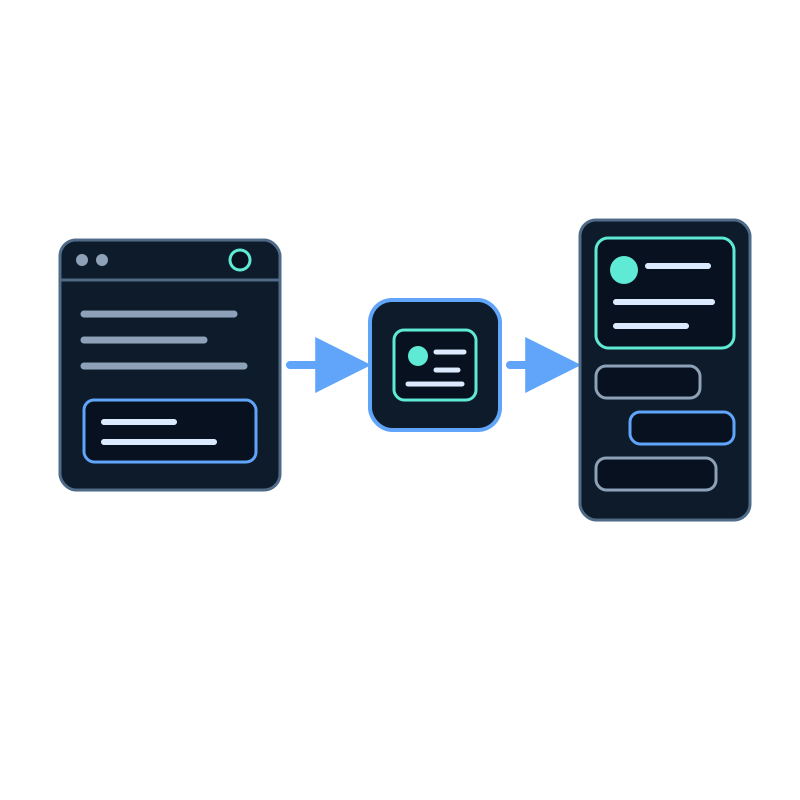
When a person takes over a conversation in Seekdown's Live support console, the first question is often who is this? Without help, the console only knows a random visitor id. A customer who's signed in to your site has to repeat their name and email, and the agent can't tell a new prospect from a long-time customer.
Your website already knows who's signed in. Passing that to the assistant when it loads takes a few lines of code.
What the console can show
The Visitor panel next to each conversation has four sections. Only the first depends on your site:
| Section | Source |
|---|---|
| User data | What your site passes in userInformation |
| Connection | Collected by the assistant: online status, browser, page, location |
| This session | Collected by the assistant: chat opened, suggestions clicked, answers rated, forms sent |
| History (last 30 days) | Analytics for the same visitor id: sessions and previous questions |
User data also replaces Visitor plus a short id in the conversation list with the visitor's name or email.
Pass the visitor's identity when the assistant loads
Add userId and userInformation to the options of skdwn.startAssistant on pages where the visitor is signed in. Keep the rest of your snippet as it is.
<script>
  skdwn.startAssistant({
    assistantId: 'your-assistant-id',
    accessToken: 'your-api-key',
    userId: 'customer-4821',
    userInformation: {
      name: 'Ada Lovelace',
      email: 'ada@example.com',
      plan: 'Pro'
    }
  });
</script>| Option | Use it for | Example |
|---|---|---|
userId | A stable id from your own system. The same person keeps one identity across visits and devices, so the 30-day history is theirs | customer-4821 |
userInformation | A flat set of text values for people to read: name, email, plan, company | { name: 'Ada Lovelace', plan: 'Pro' } |
Render the values on the server from the signed-in session, or read them from your front-end's user state. On public pages where nobody is signed in, leave both out: Seekdown generates an id per browser.
Decide what to share
Everything in userInformation is shown to whoever opens the console and travels with the analytics events. Share what helps an agent answer, and nothing more.
| Share | Don't share |
|---|---|
| Name and email | Passwords, tokens or session cookies |
| Plan or customer type | Payment details or ID numbers |
| Company or account name | Health or other sensitive personal data |
| Language or region | Anything you wouldn't show a support agent |
If a linked service needs a per-user token, pass it in params, which is used only for those requests and isn't shown to agents or stored in analytics. See Linked services.
Check the result
- Sign in to your site as a test customer and open the assistant.
- Ask a question.
- In AI assistants → Live support, the conversation should show the test customer's name.
- Open it and click Visitor: User data lists the values you passed.
If you still see Visitor plus an id, check that the snippet with userInformation runs on that page, after the visitor is signed in, and that the values are strings.
What you get beyond the console
The same identity labels the visitor in Analytics, so you can follow one customer's questions over time. The details are in Analyze usage. For the hand-off itself, read how to take over a conversation from your website AI assistant.