Keep a WordPress AI chatbot updated
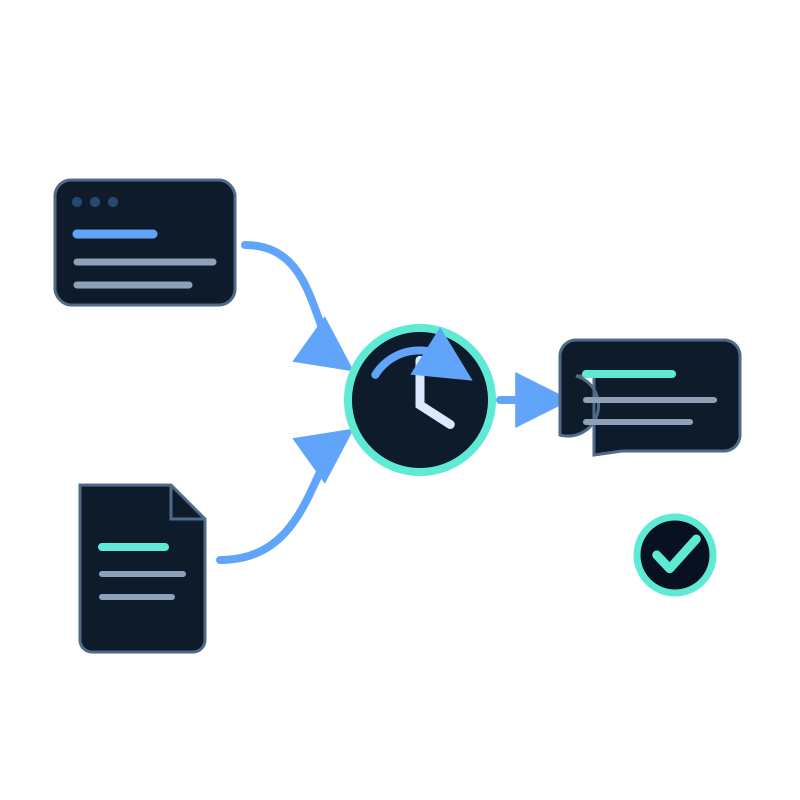
The WordPress plugin displays the assistant. It does not by itself refresh the website content in the connected dataset.
Use a scheduled website data capture job for the public WordPress pages the chatbot should answer from.
Define the WordPress scope
Include useful content types such as product pages, support pages, documentation, selected posts, and policy pages.
Exclude:
- login and admin paths;
- cart, checkout, and account pages;
- tag, author, date, and internal search archives;
- preview and feed URLs;
- duplicate print or tracking URLs; and
- old content that should no longer support answers.
Start from the relevant section URLs rather than relying on the homepage to discover everything.
Run and review the first capture
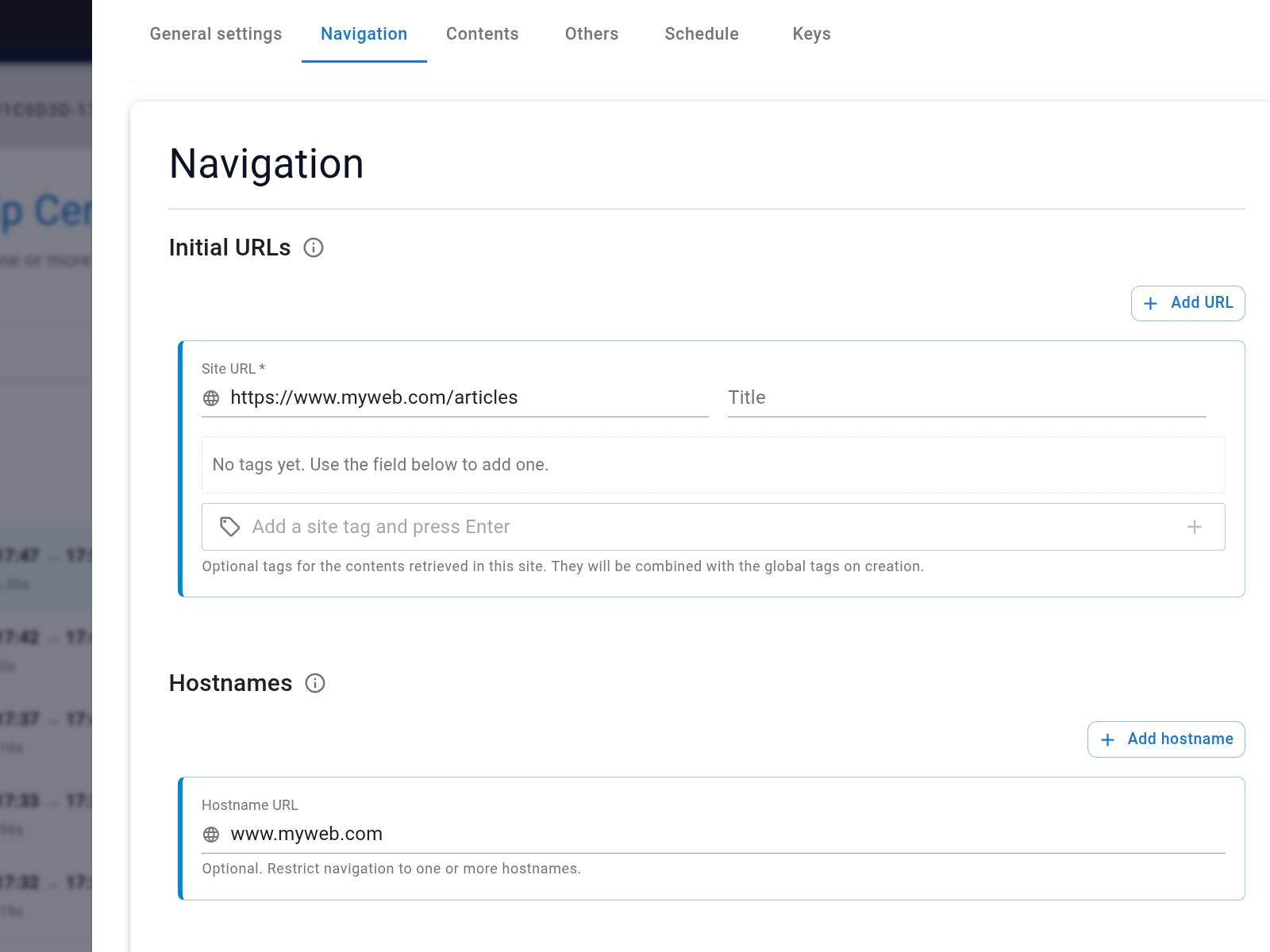
Configure initial URLs, hostnames, path rules, link depth, and page cap. Run the job before adding a schedule.
Compare discovered links with the WordPress sitemap and search the dataset for known post titles. Check that the captured body contains the information the chatbot needs.
Choose the schedule
Seekdown supports intervals from every hour to every seven days, plus Never.
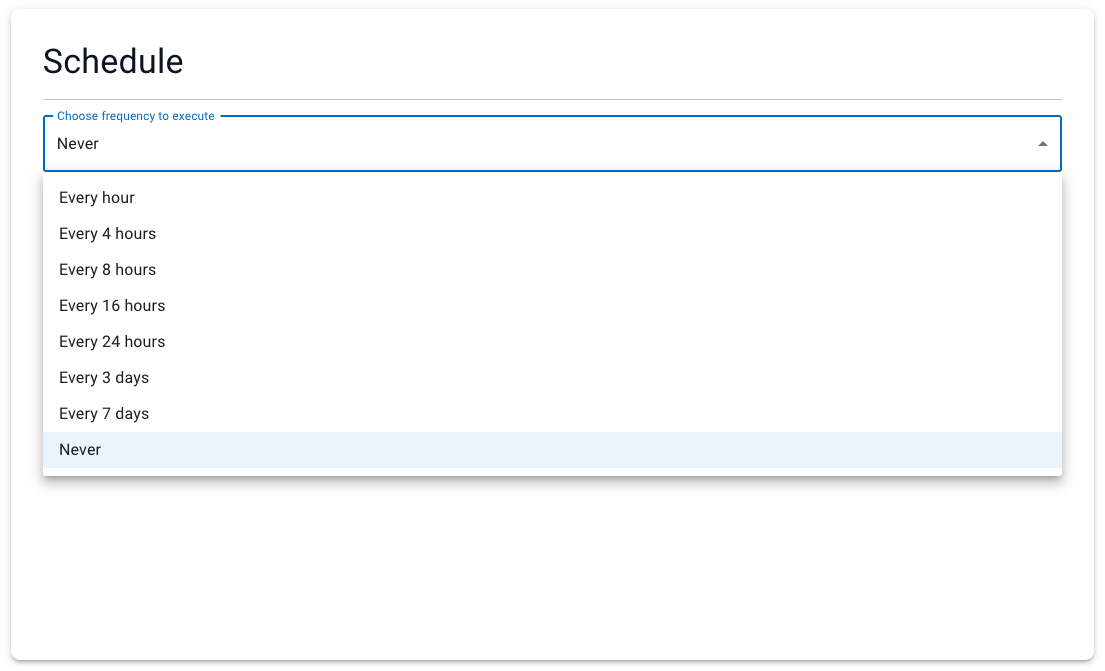
Use a cadence that follows publishing:
- daily for an active support site or frequently edited catalog;
- every three or seven days for a stable content site; or
- manual capture after controlled policy releases.
Verify a WordPress edit
- Record a chatbot answer and citation tied to one page.
- Edit and publish a factual change in WordPress.
- Complete the next capture.
- Find the updated text in the dataset.
- Ask the same question.
- Open the citation and confirm the live page.
If the answer remains old, search for duplicate posts, archive copies, translations, or cached source pages that still contain the previous wording.
Scheduled capture reduces manual uploads. It does not replace content ownership or verification after important changes.