Embed a Search Center on your website
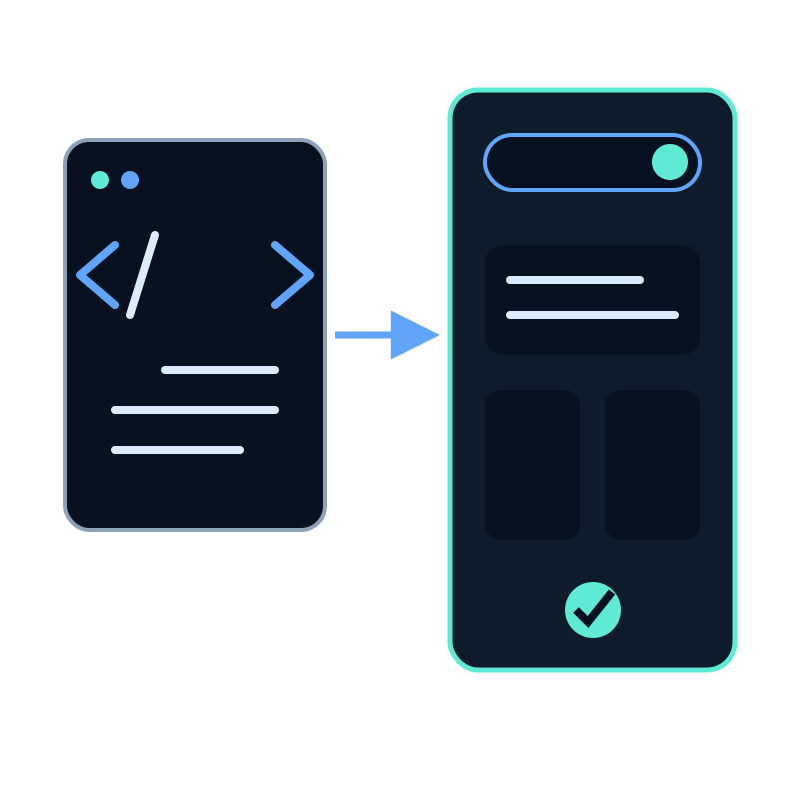
Use the generated Embed code when the Search Center should appear inside a page you control. The embed needs the Seekdown runtime, one container, and the Search Center's srch-… ID.
Add the public embed
The documented structure is:
<script src="https://saas.seekdown.ai/js/seekdown-assistant.js"></script>

<div id="seekdown-assistant-root"></div>

<script>
  document.addEventListener('DOMContentLoaded', function () {
    if (window.skdwn && window.skdwn.startAssistant) {
      skdwn.startAssistant({
        assistantId: 'srch-your-search-center-id',
        accessToken: ''
      });
    }
  });
</script>
Replace the sample ID with the value from your Search Center's generated snippet. An empty access token is appropriate only for a public Search Center using None authentication.
Place it deliberately
Add the container where the search experience should render. Give the page enough width for the result cards and test its height after both a short and a long answer.
Do not add the same container ID twice on one page. The runtime targets #seekdown-assistant-root.
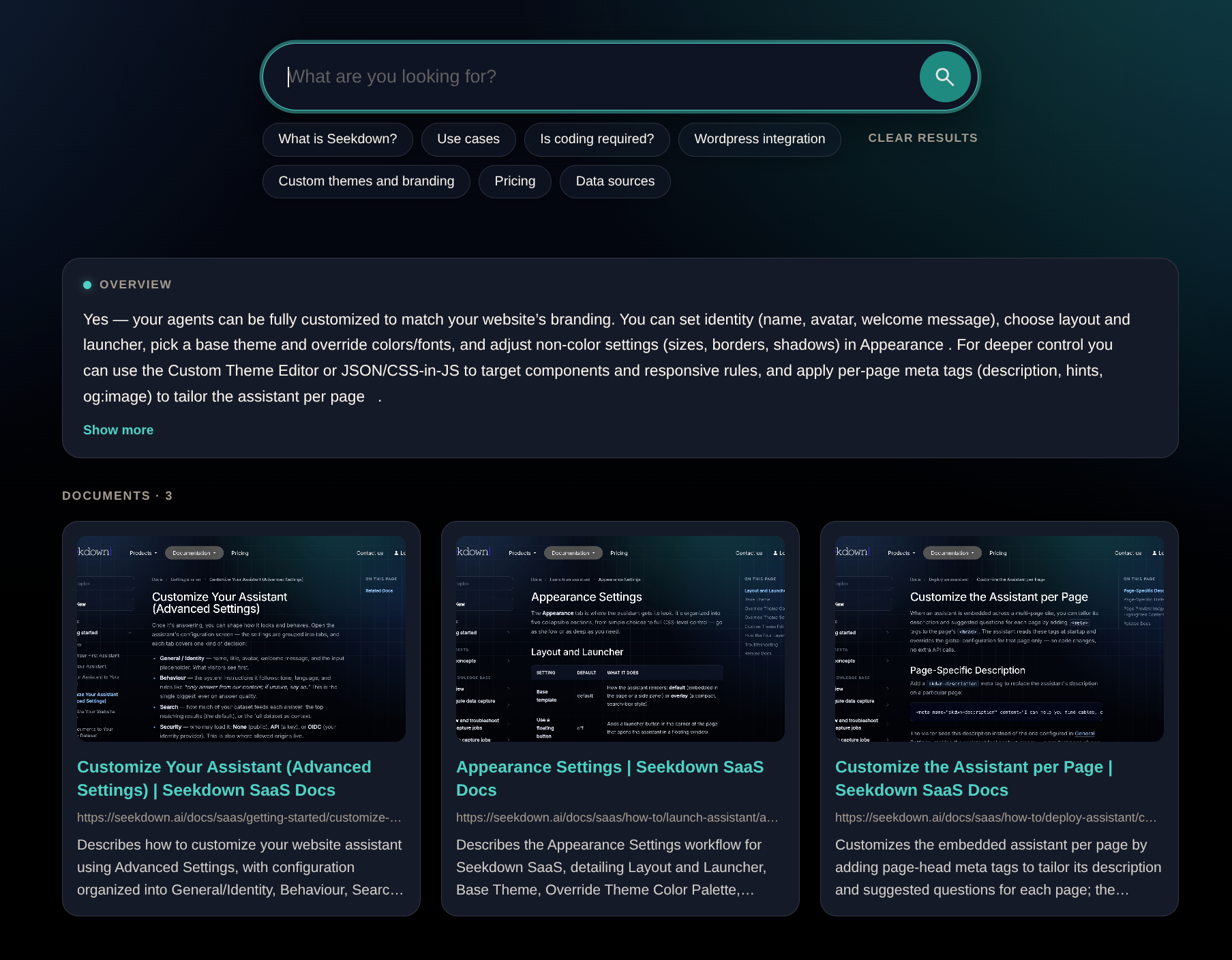
Verify the implementation
| Input or action | Expected output | How to verify |
|---|---|---|
| Load the page | Search interface appears in the container | Check the browser console for script errors |
| Choose a suggestion | The query runs | Confirm the selected text and result |
| Ask a known question | Correct answer and documents appear | Compare with the expected source |
| Open a source card | Original page opens | Check destination and supporting text |
| Resize the page | Interface remains usable | Test narrow and wide viewports |
Diagnose a blank embed
Check the runtime URL, container ID, Search Center ID, and initialization call in that order. For a private Search Center, also check the access token and Allowed origins.
Use the copied snippet rather than reconstructing IDs from a public URL. If anonymous access is not appropriate, configure a private Search Center before publishing the embed.